A notepad that does more
Simple notes when you need them. More when you want it.
WebF1 Pad is a free notepad for Linux, Windows and Android. Open it and start typing - no Markdown knowledge required. Keep notes in tabs, format them with familiar toolbar buttons, and add previews, encrypted backup or AI only when those features are useful to you.
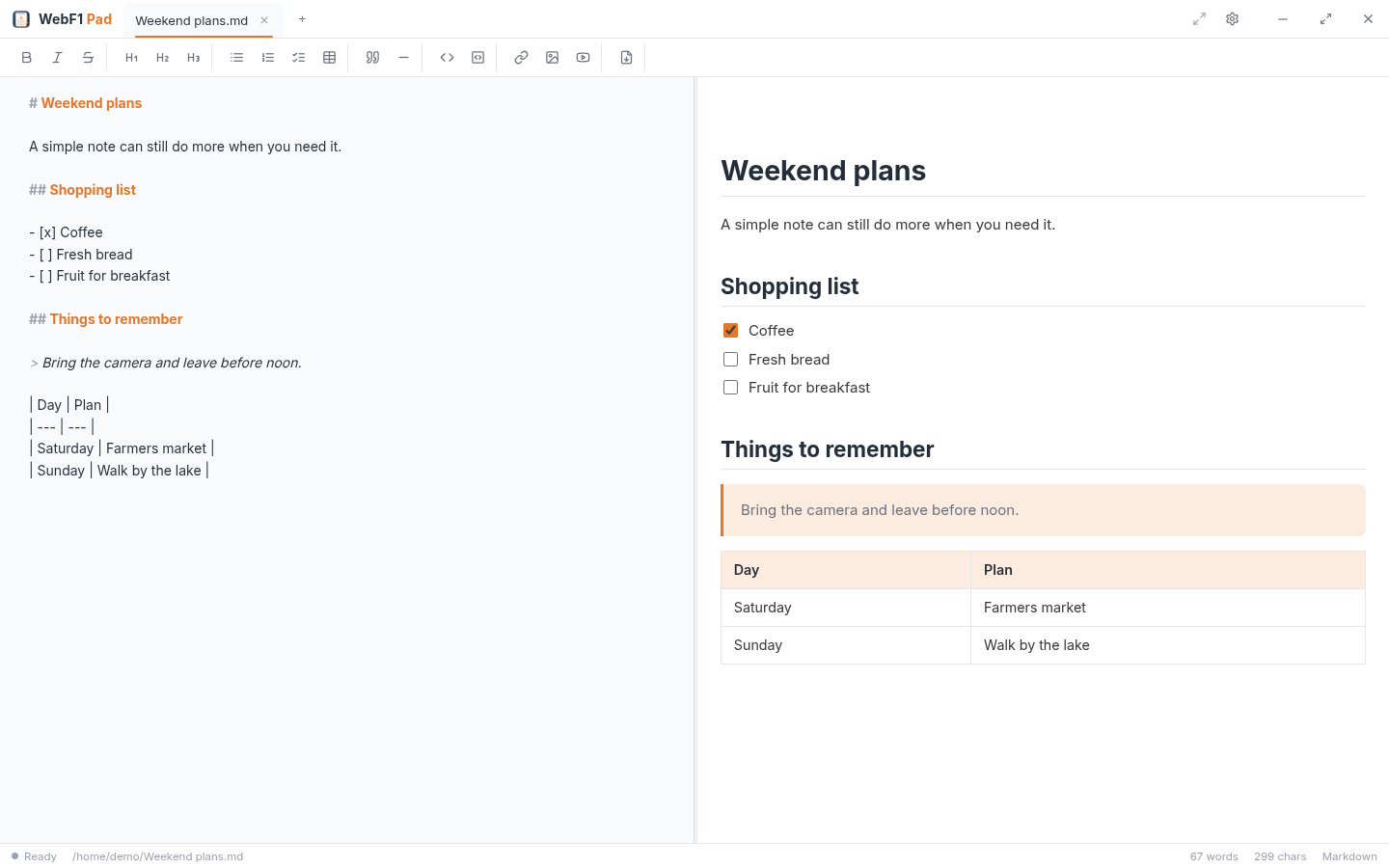
Write first, format when you want
Start typing like any other notepad. Toolbar buttons handle headings, bold text, lists, checklists, links, images and tables, so you do not need to learn Markdown first.
Keep every note within reach
Open several notes in tabs and return to the same notes, chats and window layout the next time you launch the app. Saved files can update automatically as you type.
Preview is there when you need it
Keep things simple with the editor alone, add a side-by-side preview, or move the preview to another window. Checklists remain clickable in the finished view.
Useful tools are built in
The desktop Tools menu creates UUIDs and generates passwords, memorable passphrases and usernames without making you leave your notes.
There is an Easter egg
Somewhere in WebF1 Pad a little surprise is hiding. It stays out of sight until you look for it.
Optional AI beside your notes
Connect Ollama, Anthropic, OpenRouter or another compatible provider. Attach notes, documents and images, search the web when useful, and turn an answer into a new note.
More when you need it
Open text and code files, find and replace, check spelling, export PDFs on desktop, choose your theme, or keep an encrypted backup in S3-compatible storage you control.
Start simple. Add more when you need it.
WebF1 Pad is comfortable as an everyday place for quick notes, checklists and text files. The formatting toolbar means Markdown can stay in the background while you use headings, lists, tables, links and images. Your open work is restored when you return, and the optional preview shows how a polished note will look.
When you want more, connect an AI provider or a local Ollama installation, back up selected notes to encrypted S3-compatible storage, or let a compatible AI assistant work with the note you have open. These connected features are optional and off until you configure them. By default, your notes are ordinary files on your device.