Features
Everything WebF1 Pad does
A friendly everyday notepad with room to grow. Start with typing and familiar formatting, then use previews, desktop tools, cloud backup or AI when they are useful to you.
Everyday writing
Open the app and write. The extra capabilities stay out of the way until you need them.
Familiar formatting, no Markdown lessons required
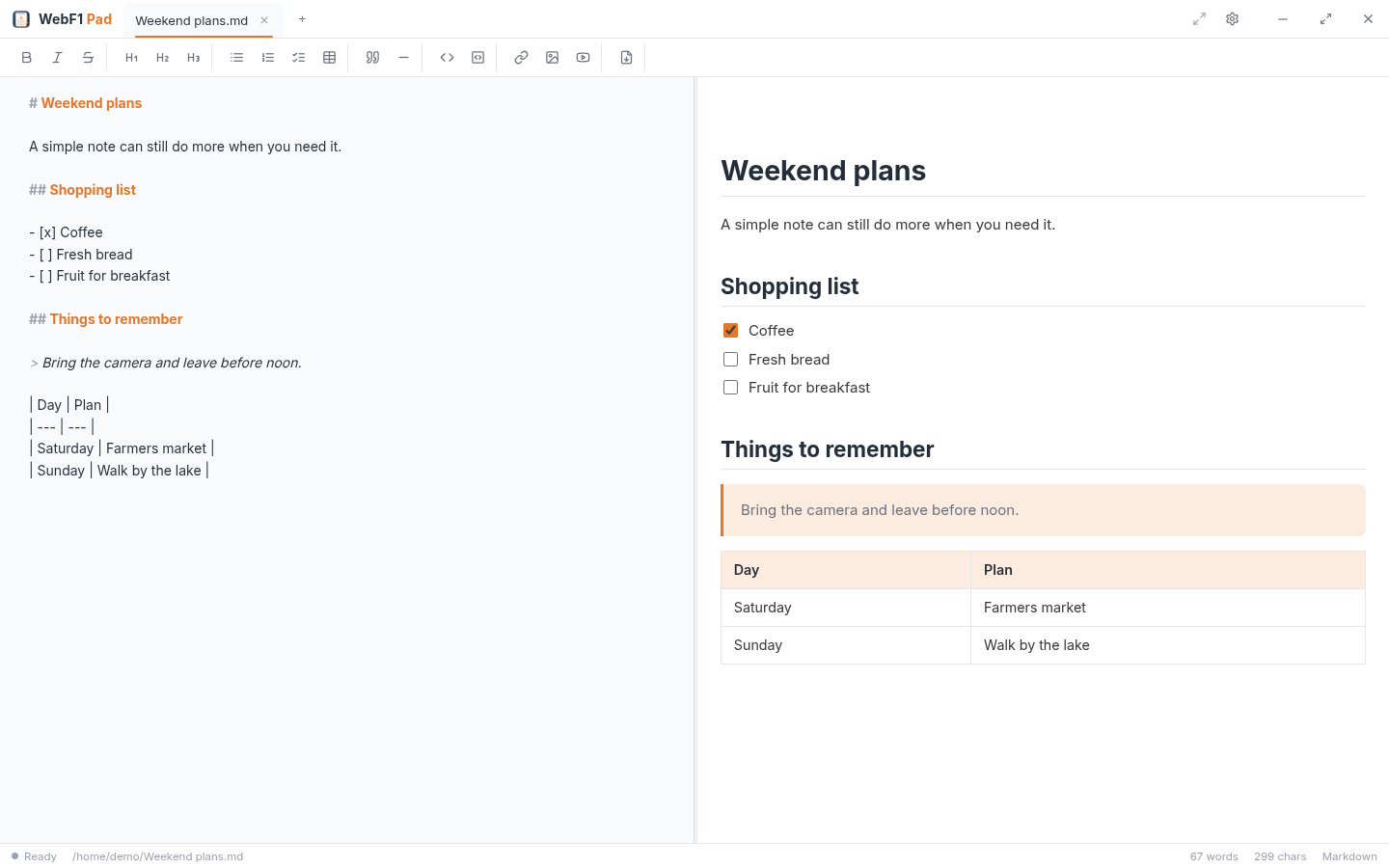
Use toolbar buttons for bold and italic text, headings, bullets, numbered lists, checklists, tables, quotes, links, images and more. WebF1 Pad stores flexible Markdown underneath, but you can start with the toolbar and learn as little or as much syntax as you want.
Notes and text files in tabs
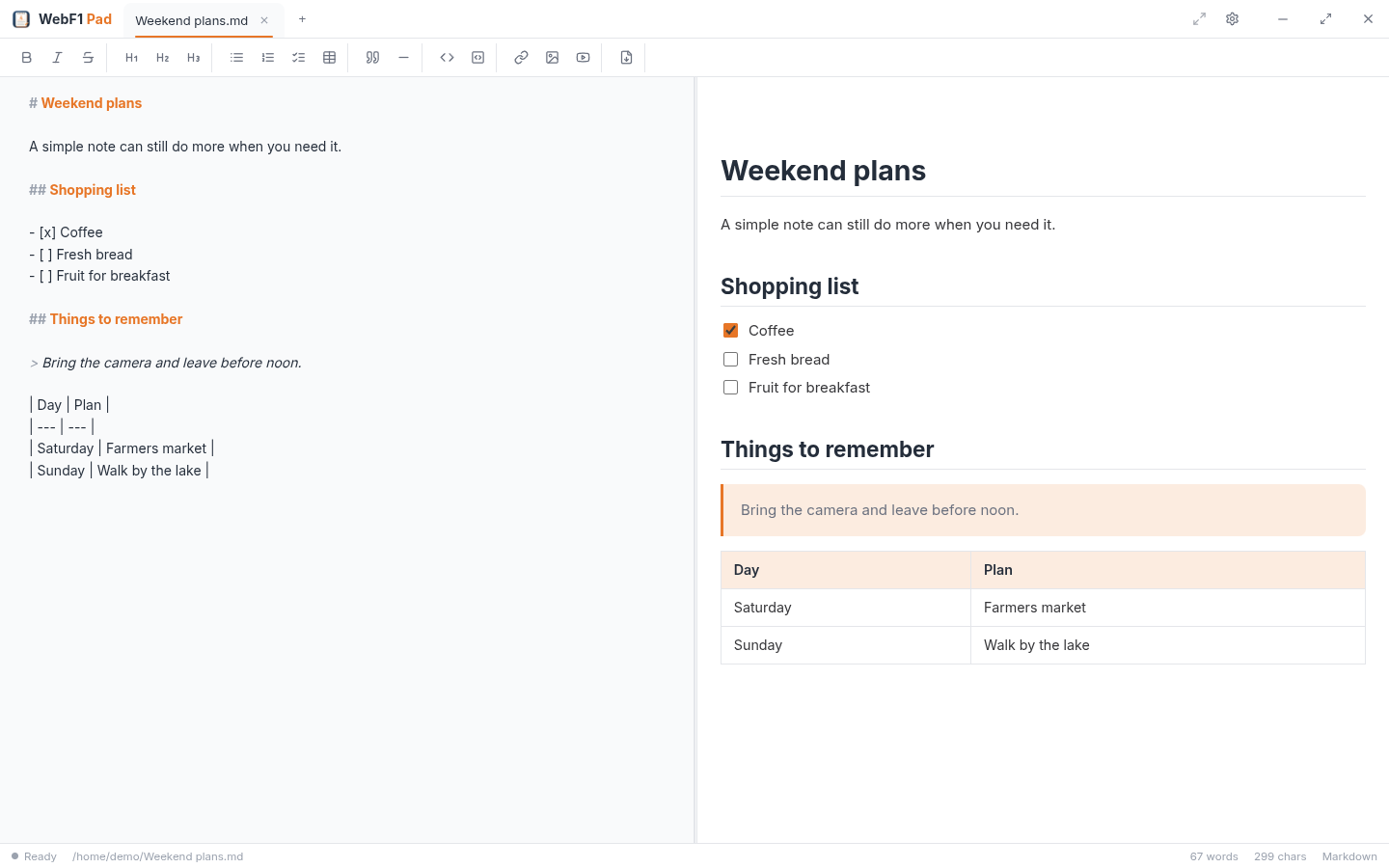
Keep several notes open at once, open .md and .txt files from your file manager, and drag files into the app. Your tabs, active note, preview choice and window layout are restored when you return.
Autosave and recovery
Once a note has a file, optional autosave writes changes back as you type. Unsaved notes are also preserved in the app session, with crash-recovery copies available if an interruption occurs.
Live preview - or just the editor
Keep the preview off, place it beside the editor, or open it in a separate desktop window. Tables, highlighted code and task lists render as you type, and preview checkboxes update the note.
Self-contained images
Paste an image or choose one from the toolbar and it is embedded in the note itself. Copy or back up the note and its images come with it.
Comfort details
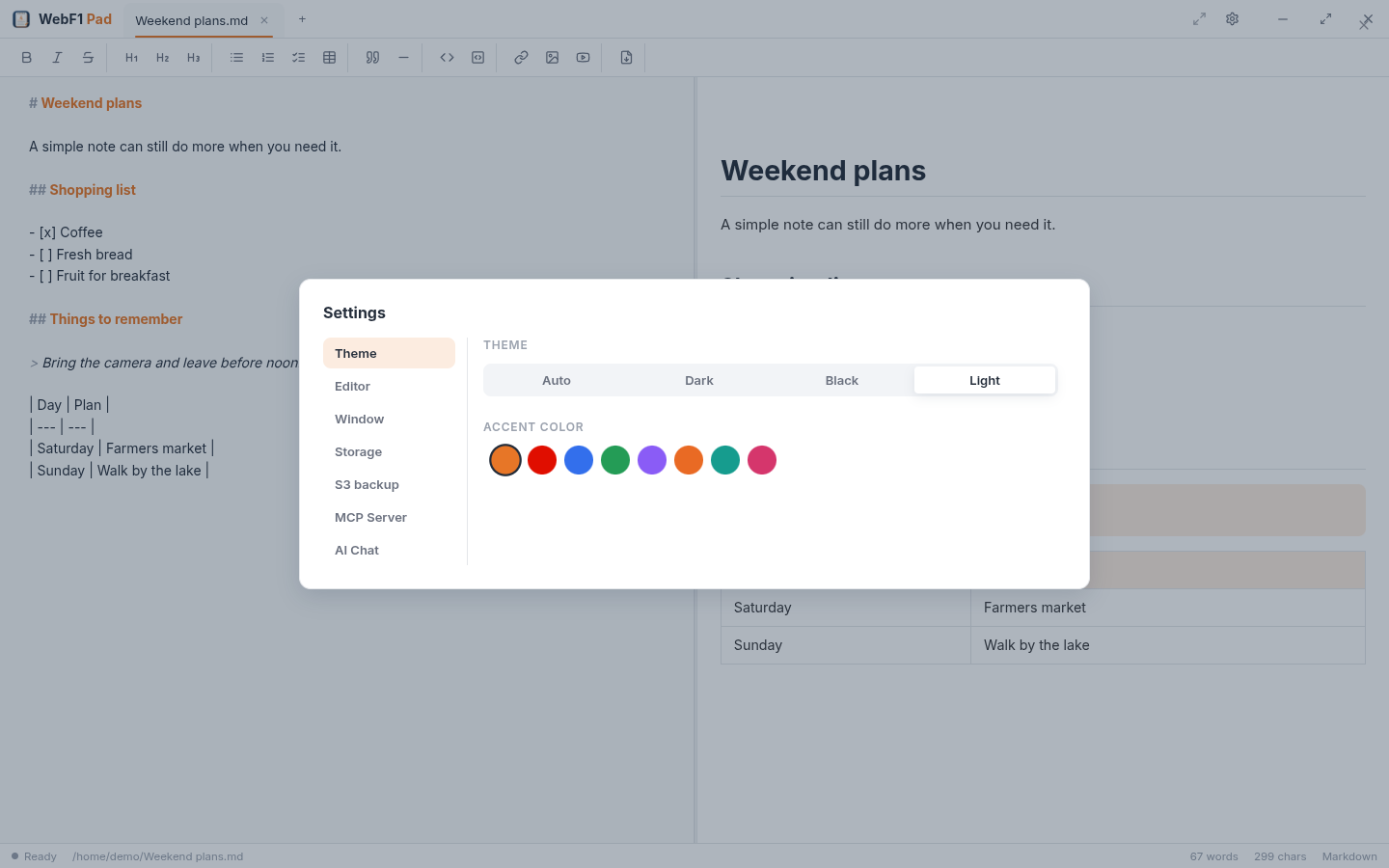
Find and replace, spell check, line wrapping, content zoom, word and character counts, recent files, dark, light, automatic and black themes, plus eight accent colors.
Useful extras
Common tasks that normally require another app are close at hand.
UUID, password, passphrase and username generators
The desktop Tools menu creates one or many UUIDs and generates configurable passwords, memorable Diceware passphrases and usernames. Copy a result immediately or return to recent results from the current session.
PDF export and printing on desktop
On Linux and Windows, export a note or chat to a clean PDF or use the system print dialog. Headings, tables, code, checklists and embedded images carry into the finished document.
Code scratchpads
Open Rust, Python, TypeScript, Go, YAML, XML and many other code files with syntax highlighting. Find, replace and autosave work just as they do for notes.
CSV files as real tables
Open .csv or .tsv files and read them as a row/column grid with sortable columns and a Raw view for the file text. The Week view lays a Day column out like a weekly calendar, every row under its day. Pick the delimiter and whether the first row is a header, then flip on Edit to change cells in place - edits save back to the file with its original formatting preserved.
Storage where you choose
Move the app's notes, chats, recent-file list and recovery data to another folder from Settings. Open files can still live anywhere you normally keep them.
There is an Easter egg
Somewhere in WebF1 Pad a little surprise is hiding. It stays out of sight until you look for it.
Designed for large and small screens
The desktop layout provides tabs, menus and a separate preview window. On Android and narrow screens, drawers and an Edit/Preview switch keep the same note workflow usable in less space.
Optional connected features
AI, agents and cloud storage are available when they fit your workflow. They are not required to use the notepad.
AI chat beside your notes
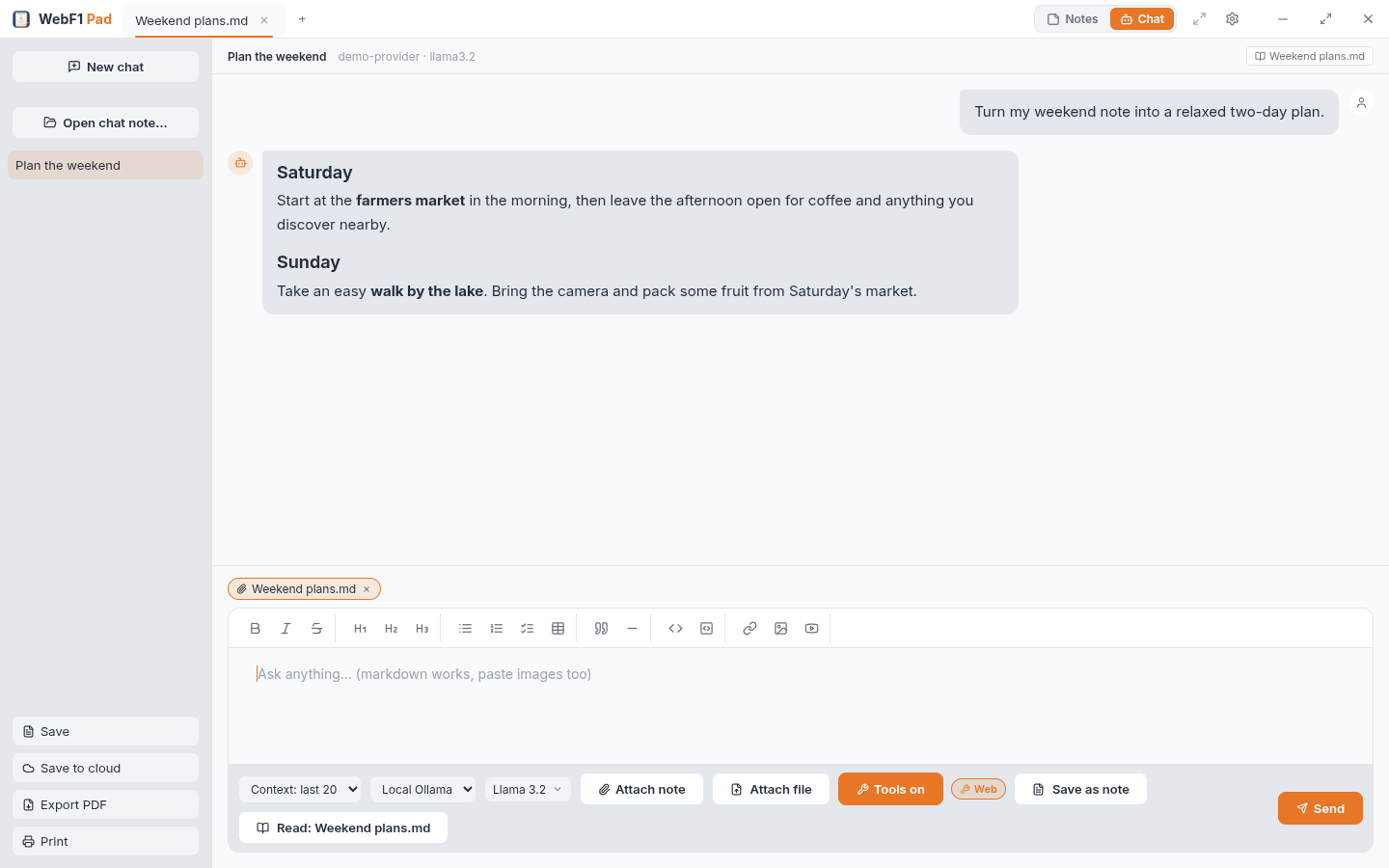
Connect a local Ollama installation, Anthropic, OpenRouter or another OpenAI-compatible provider. Attach notes, text and code files, PDFs, Office documents or images, control how much chat history is shared, and save a useful answer as a note.
Current information from the web
When web search is enabled, compatible models can search with DuckDuckGo, your own SearXNG instance, or the LLM-focused Tavily and Exa APIs. Models without tool support receive a simple per-chat Web switch.
Compatible AI assistants can help with open notes
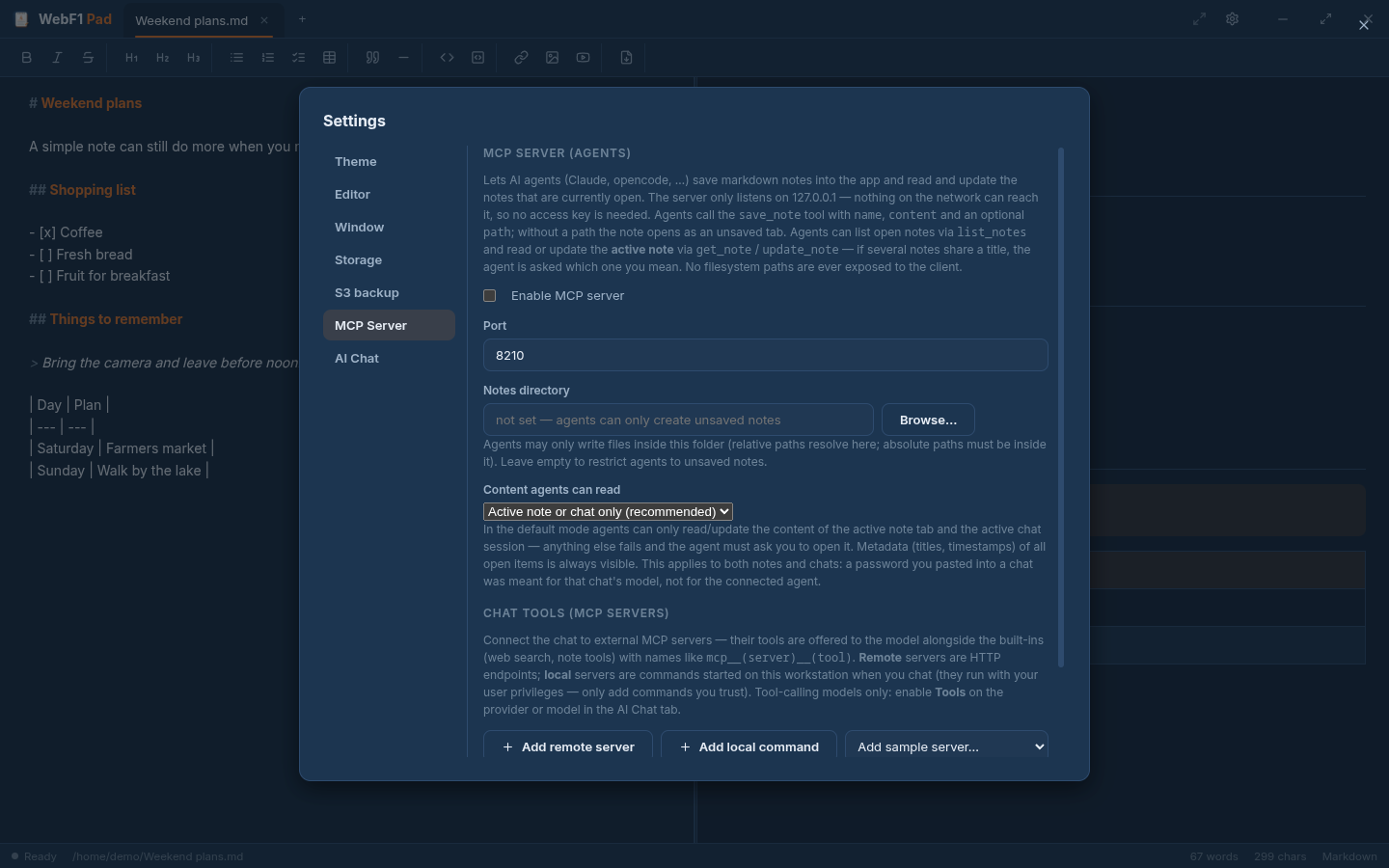
The optional built-in MCP connection lets assistants such as Claude, opencode or Codex create notes and, with your permission, read or update the active note. Advanced users can also connect chat to remote tool services or desktop commands.
Encrypted backup to storage you control
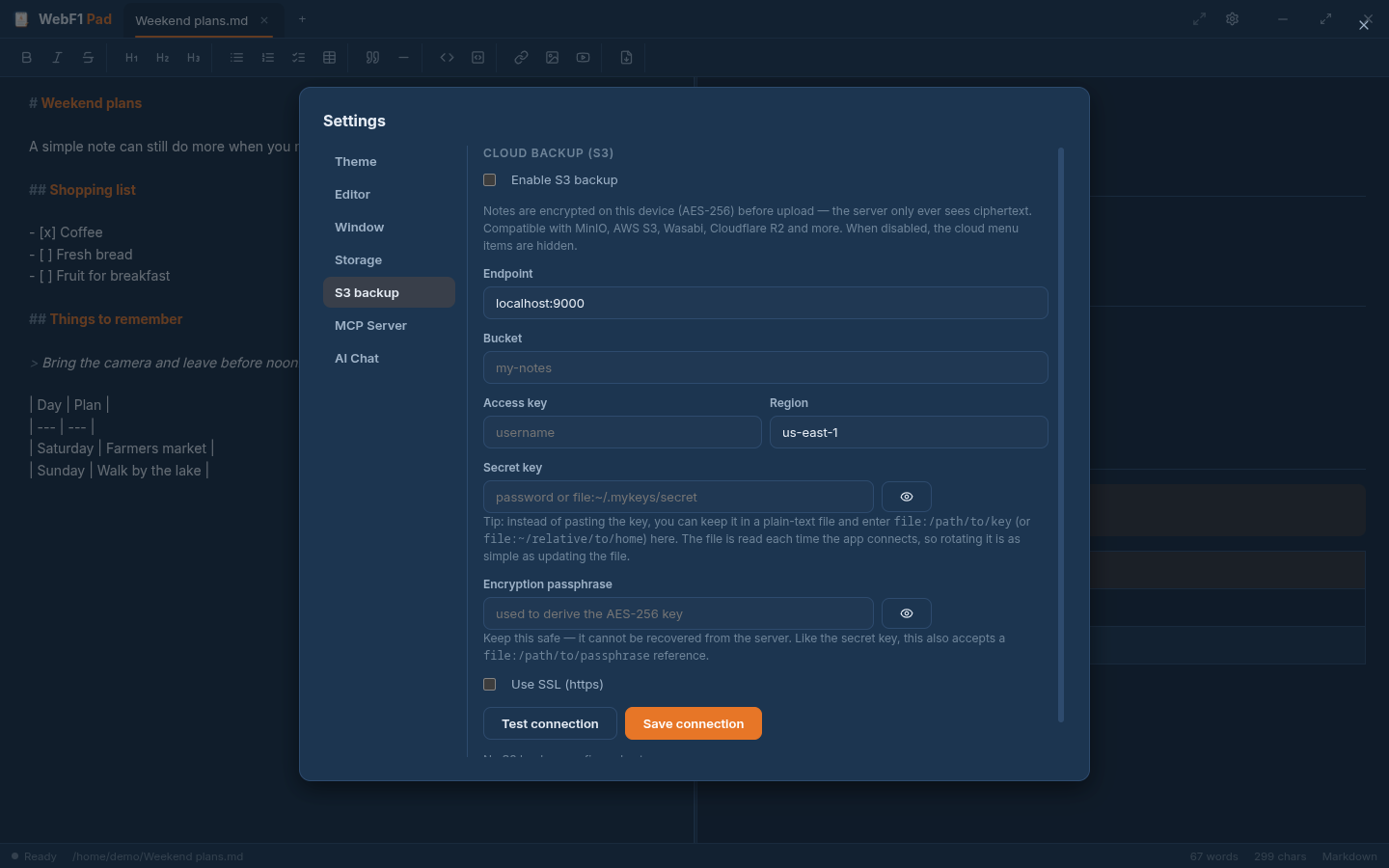
Connect MinIO, AWS S3, Wasabi, Cloudflare R2 or another S3-compatible provider. The selected note or chat is encrypted on your device before upload, and you keep the passphrase.